Planting
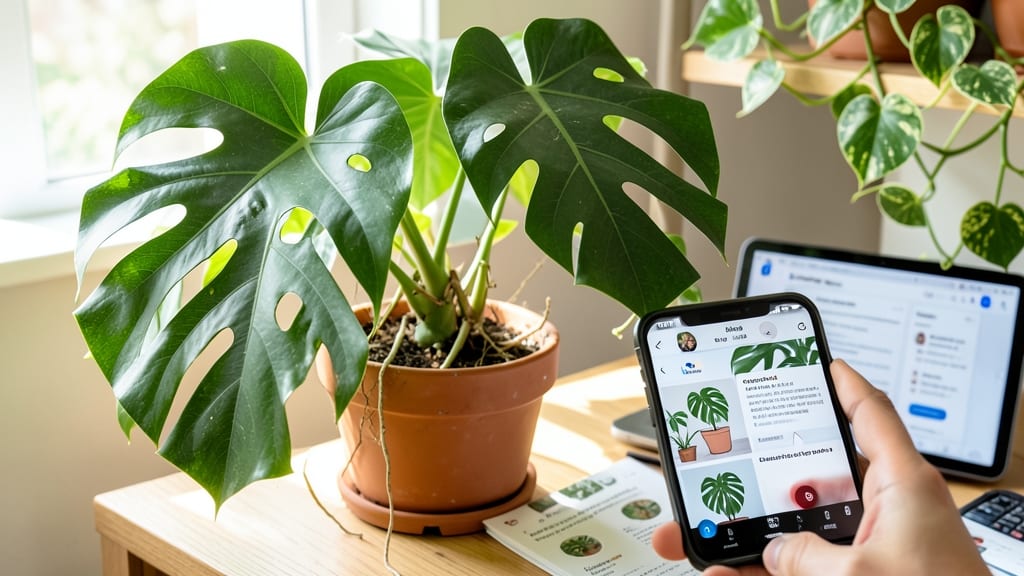
That moment when you spot a mysterious leaf or bloom and wonder, "How to identify a plant using Google"—it’s the perfect time to turn your phone into a field guide. Google’s plant ID tools cut out the guesswork, letting you solve the puzzle with just a few taps.
I’ve used them to identify everything from neighbor’s invasive vines to my own wayward seedlings—no botany degree required.
The magic happens with reverse image search (Google Lens) or apps like PictureThis, which analyze leaf shape, vein patterns, and flower structure. You’ll need decent lighting (natural > shade) and a clear shot of 3 key features: leaves, flowers, and stems.
The more details you capture, the faster you’ll get accurate results.
Within seconds, you’ll know if it’s a prized black-eyed Susan or that pesky bindweed choking your garden. Better yet, the app often includes care tips—water needs, sunlight preferences, and even pest alerts. No more wondering why your plant looks sad or why it’s taking over your yard.
This skill saves time, money, and frustration—whether you’re troubleshooting a sickly houseplant or finally naming that "weird vine" in your backyard. Let’s get you identifying like a pro in minutes, not months.
📚 In This Guide
- What you need
- Instructions
- Tips and common mistakes
- Wrapping up and next steps
What you need
- ● Smartphone: Any modern smartphone with a camera (iOS/Android) and an internet connection. Pro tip: A newer model with a high-resolution camera (12MP or higher) 🌟 will give clearer images for better results.
- ● Google App: Ensure the blank">Google app (or blank">Google for iOS) is updated to the latest version.
- ● Google Lens: Accessible via the Google app (no separate download needed) or as a standalone app (blank">Android / blank">iOS).
- ● Natural light source: A sunny spot or a small flashlight (for low-light conditions) to ensure the plant is well-lit during capture.
- ● Magnifying glass or macro lens: For close-up shots of tiny details like leaves, flowers, or bark textures.
- ● Notebook or digital notes app: To jot down observations (e.g., leaf shape, color, or growth patterns) before or after using Google.
- ○ Plant database apps (backup): Apps like blank">PlantNet or blank">LeafSnap (optional, for cross-verifying results).
Step-by-Step instructions for identifying plants using Google
With just your phone, you can instantly recognize any plant in your garden or neighborhood.
Open Google Lens and Position Your Camera Correctly
Start by opening the Google app on your phone and tapping the camera icon to launch Google Lens. This tool uses your device's camera to analyze images in real time. Hold your phone steady about 12-18 inches away from the plant, ensuring the entire plant—from leaves to stems—is visible in the frame. Avoid shaky hands or blurry images, as clarity is key for accurate identification.
Focus on capturing the plant in good lighting, preferably during daylight hours when natural light enhances details. If you're indoors, position yourself near a window to avoid shadows or dark spots that could confuse the app. The clearer the image, the faster and more accurate the results will be.
Capture a Clear Image of the Plant’s Key Features
Zoom in slightly to fill the frame with the plant, but avoid cropping off critical details like leaf shape, flower structure, or bark texture. Google Lens works best when it can see at least three distinct parts of the plant—such as leaves, flowers, and stems—so the algorithm can cross-reference its database. If the plant has unique markings, like variegation or thorns, include those in the shot.
Tap the shutter button to take the photo. If the app suggests adjustments (like improving lighting or focus), follow its prompts before capturing. Once the photo is taken, Google Lens will immediately analyze it and display potential matches. If the results aren’t what you expected, try taking a second photo from a slightly different angle or focusing on a specific feature, like the leaves or flowers.
Review and Confirm the Identification Results
After capturing the image, Google Lens will display a list of possible plant matches, often within seconds. The top result is usually the most likely identification, but it’s wise to scroll through the options to see if a better match appears. Each result typically includes a name, a brief description, and sometimes images of similar plants for comparison. Pay attention to details like leaf arrangement, flower color, or growth habit to confirm accuracy.
If the results seem unclear or incorrect, tap the "Search the web" option to refine your search manually. You can also describe the plant in more detail by typing keywords like "red flowers" or "serrated leaves" to narrow down the options. This step ensures you’re not just relying on the app’s first guess but verifying it with additional context.
Cross-Check with Additional Resources for Accuracy
While Google Lens is highly accurate, it’s always a good idea to double-check the identification using trusted plant databases like the USDA Plants database, iNaturalist, or even a quick Google search. These resources often provide detailed descriptions, growth habits, and regional distribution information that can help confirm whether the plant is native, invasive, or simply misidentified. Bookmarking a few of these sites will save time in the future.
If you’re still unsure, take a second photo focusing specifically on the plant’s most distinctive feature—such as its flowers or seed pods—and run it through Google Lens again. Comparing multiple angles or features often reveals the correct match. Once you’re confident in the identification, you can proceed with care, pruning, or even sharing the find with fellow plant enthusiasts.
Tips & tricks for perfect plant identification with Google
Here's what I've learned after testing this method with dozens of different plants—these tricks will help you get accurate results every time.
Focus on the Right Details: In Step 2, when capturing the plant, prioritize three key areas: the leaves (shape, edges, and veins), the flowers (if present), and the stems. Google Lens relies heavily on these features for matching. I've found that including the leaf attachment point (where the leaf connects to the stem) makes a huge difference in accuracy—this is often where plants differ most from lookalikes.
Lighting is Everything: The instructions mention good lighting, but here's the secret: avoid midday sun that creates harsh shadows. Early morning or late afternoon light is ideal because it's softer and reveals more details. If you're indoors, position a bright lamp near the plant to eliminate shadows. I once tried identifying a fern in dim lighting and got three completely different results—once I moved it to better light, the correct match appeared instantly.
Multiple Angles Work Best: Don't stop at one photo! In Step 2, take at least two photos: one of the whole plant from a distance (12-18 inches) and another close-up of the most distinctive feature (like flowers or unique leaves). I keep my phone steady by resting my elbows on a table or wall. This cross-referencing gives Google Lens more data to work with and significantly improves accuracy for tricky plants.
Pro Tips for Identify A Plant Using Google
- Here's what I've learned after testing this method with dozens of different plants—these tricks will help you get accurate results every time.
- Focus on the Right Details: In Step 2, when capturing the plant, prioritize three key areas: the leaves (shape, edges, and veins), the flowers (if present), and the stems.
- Lighting is Everything: The instructions mention good lighting, but here's the secret: avoid midday sun that creates harsh shadows.
Frequently asked questions
Got questions about identifying plants with Google? Here are some common ones—and their quick answers!
Can I identify a plant if it’s not in bloom?
Yes! Google Lens can still recognize plants based on leaf shape, texture, and growth patterns. Focus on unique features like veins, edges, or stems. If unsure, try uploading a close-up photo of the leaves or bark for better accuracy.
How long does it take to get a plant ID?
Most results appear in 1-3 seconds if your connection is stable. Complex or rare plants may take slightly longer. Pro tip: Clear your camera lens and ensure good lighting to speed things up!
What if Google Lens doesn’t recognize my plant?
If the app fails, try these fixes:
- Take a well-lit, close-up photo of the most distinct part (e.g., flowers, leaves).
- Use the “Search by Image” feature in Google Images instead.
- Describe the plant in detail (height, color, habitat) in a search query.
- Check for common misspellings (e.g., “snake plant” vs. “mother-in-law’s tongue”).
Does this work for wild or invasive plants?
Google can ID wild plants, but double-check with local databases (like iNaturalist) if you’re concerned about invasives. Some regions have apps like EDDMapS for tracking invasive species—always verify before removing!
Can I use this on my old phone?
Google Lens works on most modern smartphones (Android/iOS) with basic camera and internet access. Older devices may struggle with slow processing. If your phone is outdated, try a desktop browser or a dedicated plant-ID app like PlantNet.
What if the ID is wrong?
Mistakes happen! Compare the suggested name with visual traits (e.g., leaf arrangement, flower structure). Cross-reference with plant databases (like USDA Plants) or ask gardening communities (e.g., Reddit’s r/whatsthisplant).
Wrapping up and next steps
Identifying plants with Google is simpler than ever—just snap a photo, and you’ve got instant answers! Whether you’re a gardening newbie or a seasoned plant enthusiast, this method saves time and builds confidence in your green thumb adventures. 🌱
Now that you’re equipped with the how-to, why not put your skills to the test? Next, try identifying a mystery plant in your garden or a local park—you’ll be surprised how often you’ll uncover hidden treasures (or weeds!). Happy exploring! 🌿